

A small batch of personalized wooden tags is easier to manage when each name, design file, and physical piece shares an identifier. Proofread the list, establish a layout, inspect a first piece, and then work through the remaining tags one at a time. Record completion only after checking the actual result.
You can use this workflow for gift tags, event place markers, or labels for personal projects. It uses pre-cut wooden blanks and does not depend on automatic batch features. The six-tag example below is a planning exercise, not a tested production run.
Plan a set you can keep track of
Suppose you want one tag each for Alex, Maya, Leo, Emma, Noah, and Sofia. Start with a list of those six pieces, plus suitable spare material for setup trials and any replacements.
Choose blanks with known material and coating information that your engraver’s manufacturer permits. Check their dimensions, thickness, hole position, and flatness. Similar-looking blanks should not be assumed to have identical construction or finishes. Our material checklist explains the decisions to make before processing an unfamiliar piece.
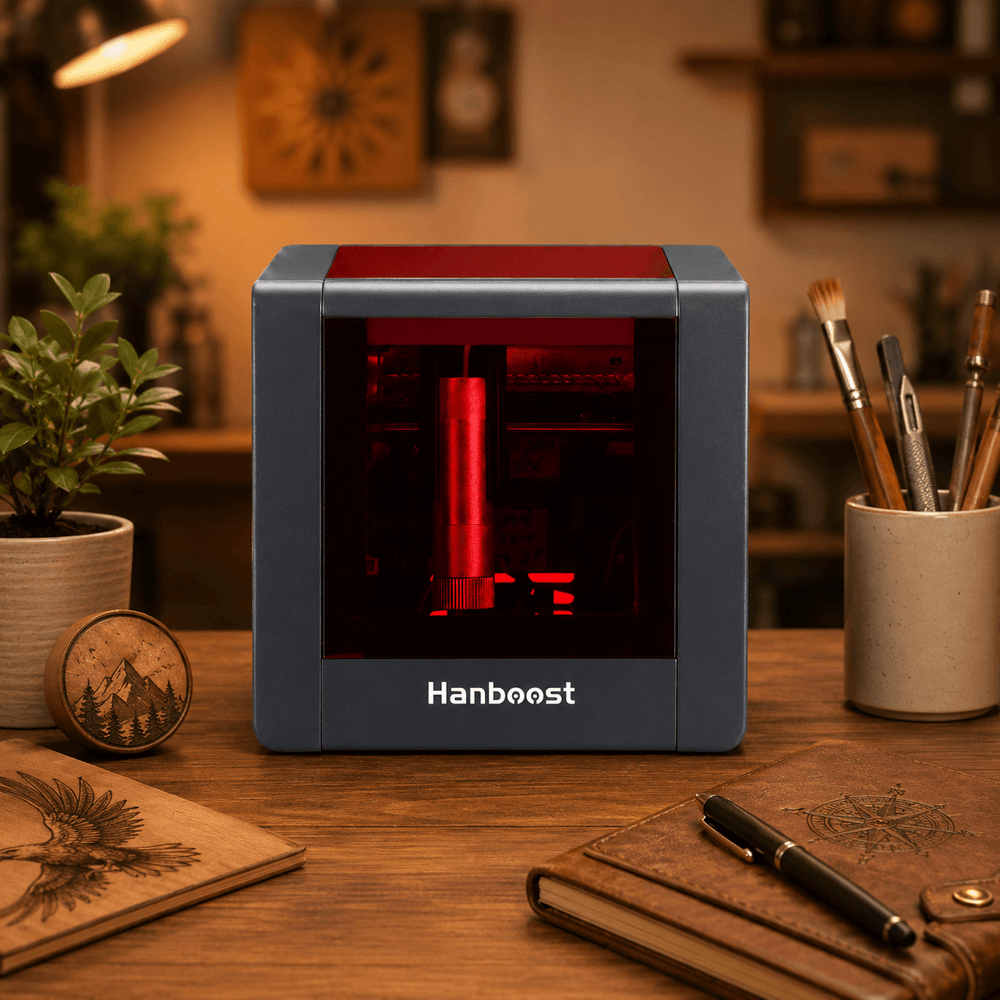
Match the project to the equipment before preparing every file. For a compact machine such as the Hanboost T1 mini laser engraver, check the current working-area and material information, then confirm that the blank fits the physical setup. A small design does not automatically mean a large blank will fit inside the machine.
For a first batch, keeping the blank shape and layout consistent makes the work easier to check. Use one type of tag rather than mixing several shapes into the same session.
Proofread the name list before designing
Give each item a number: 01 for Alex, 02 for Maya, and so on. Keep the person’s requested spelling in the list, including accents, punctuation, and capitalization.
If two recipients have the same name, they still need separate item numbers. If a name is unfamiliar, confirm it rather than silently changing it to a more familiar spelling.
Proofread in two passes:
- Compare the source list with the wording you intend to engrave.
- Compare each finished design with that checked list.
Copying text into a template can leave the previous person’s name in place. Checking only the first file will not catch that mistake.
Use a file name that ties the design to its item, such as 01-Alex-v1. Keep one clearly identified current version. If you correct a spelling, save and preview the corrected output before using it; an earlier export may still contain the old text.
Make one layout that works for the longest name
Begin with the longest name in your actual list. Put it inside the usable area, clear of the hole and edges, and inspect it at the intended physical size. Check the other names too: letter widths vary, so character count alone does not determine the widest design.
Try a readable font and enough spacing for the letter shapes to remain distinct. If the longest name is crowded, revise the layout or choose a larger suitable blank before shrinking every name. Avoid squeezing letters horizontally just to force them into a fixed box.
Use the same alignment and similar visual weight across the set. A short name does not have to fill the entire width. Letting it have more space around it can keep the group more consistent than enlarging it dramatically.

Layout example only: compare the longest and shortest names at the final size. This illustration does not establish a minimum engravable font size.
Check special characters in the exported file, not just in the editable design. For more help with scale, detail, and final-file checks, use our image preparation guide.
Inspect a first piece before repeating the process
Establish settings on suitable spare material before engraving the first finished tag. Record the material, artwork size, setup, and settings so you know what the trial actually represents. Our material test guide explains how to compare trials without guessing a universal setting.
For the first finished piece, check:
- Does the name exactly match the checked list?
- Is it upright and placed where you intended, with the hole clear?
- Are the letters distinguishable at the actual tag size?
- Is the blank free of a problem that makes this piece unsuitable to give away?
Correct the setup or file before moving on. Recheck placement for each new blank, and check focus as required by your equipment. Different thickness, a changed support height, or a new material batch may require fresh validation. The first engraving guide covers the wider setup sequence.
Work through one numbered piece at a time
Keep a simple rhythm: match, preview, position, engrave, inspect, record.
Read the item number and name, open the corresponding current file, and compare the output preview with the list. Position the correct blank in the correct orientation using your machine’s documented procedure. Only then start the job.
Outside the machine’s processing area, separate pieces into three groups: waiting, checked and complete, and needing review. Keep paper lists and loose spare materials away from the laser’s operating area. A dedicated numbered space for each piece can help you maintain identity without adding an unknown label or adhesive to the material being engraved.
Do not mark an item complete just because you pressed Start. Wait for the job to finish, follow the machine’s instructions for safe access, and inspect the result first.
If you pause or need to remake a tag
Before a break, record the last checked item and any unfinished work. When you return, match the next item to the list and preview again. Do not assume that the file left open belongs to the next blank.
Put an incorrect tag in the review group and record the reason. Engraving a corrected name over the old one may simply leave both visible; decide whether a fresh blank is needed instead of making that your default fix.
Some software offers arrays or variable text for larger runs. LightBurn’s batch-production documentation describes those features. Use them only when your equipment and software support them, and verify the generated output. This workflow makes no assumption that T1 provides a particular automatic batch mode.
Copy this record for each tag
Use one short record per item in a notebook or spreadsheet. The fields below remain useful even if you change software.
- Item number:
- Exact name to engrave:
- Current design file and version:
- Blank location or identifier:
- Text proofread: yes / no
- Production status: waiting / in progress / needs review / complete
- Finished piece checked: yes / no
- Notes or remake reason:
For example, a planning entry might read: “01; Alex; 01-Alex-v1; tray position 01; proofread: yes; status: waiting; finished check: no.” This is an example entry, not a claim that a piece has been made.
Count, inspect, and match each tag to its recipient
At the end, compare the checked pieces with the original list. Count by item number as well as total quantity: six pieces could still include one duplicate and one missing name.
Read each tag once more. Check the wording, orientation, legibility, and condition. Match it to the intended recipient before packing it. Keep any remake separate until it passes the same checks.
Stay with the engraver throughout operation, use the required enclosure and ventilation, and follow the manufacturer’s safety procedures. MIT’s laser safety guidance reinforces the need for supervision and functioning safety interlocks. A repeating task still needs attention on every run.
When the list, file, and piece agree at each step, you have a process you can reuse for the next set of names without relying on memory.